Whitelist Address:
Implementing a whitelist address policy adds an extra layer of security to your digital asset transactions. Before requesting a transaction, ensure that the destination wallet is already whitelisted to prevent any delays.
Steps on Adding a Whitelisted Address:
Access Policy Management
- Start by logging in to Liminal Vaults as the Owner/Admin.
Access the "Settings" menu on the sidebar and click on "Add" under Policy Management.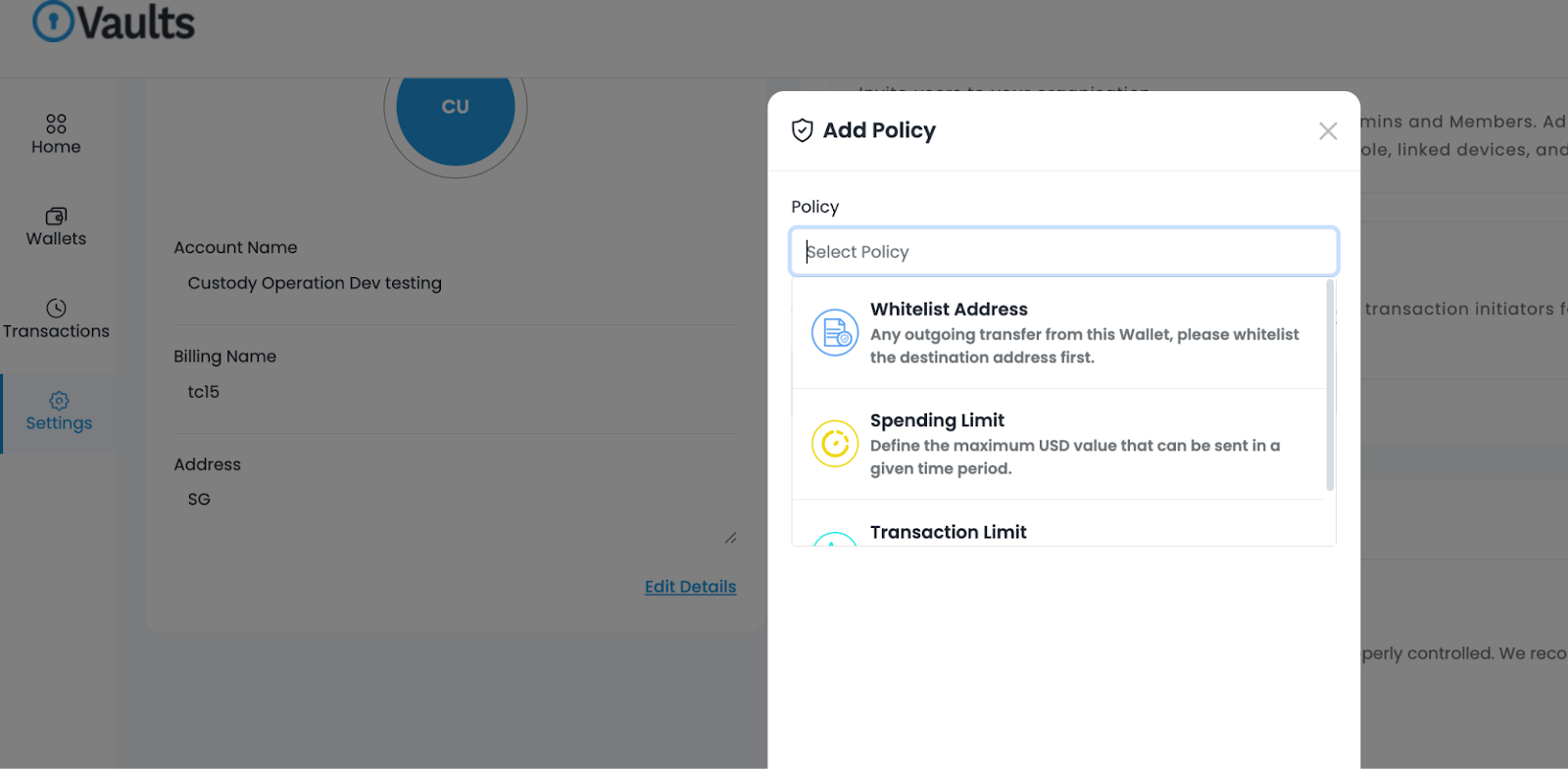
Select Policy Type and Wallet:
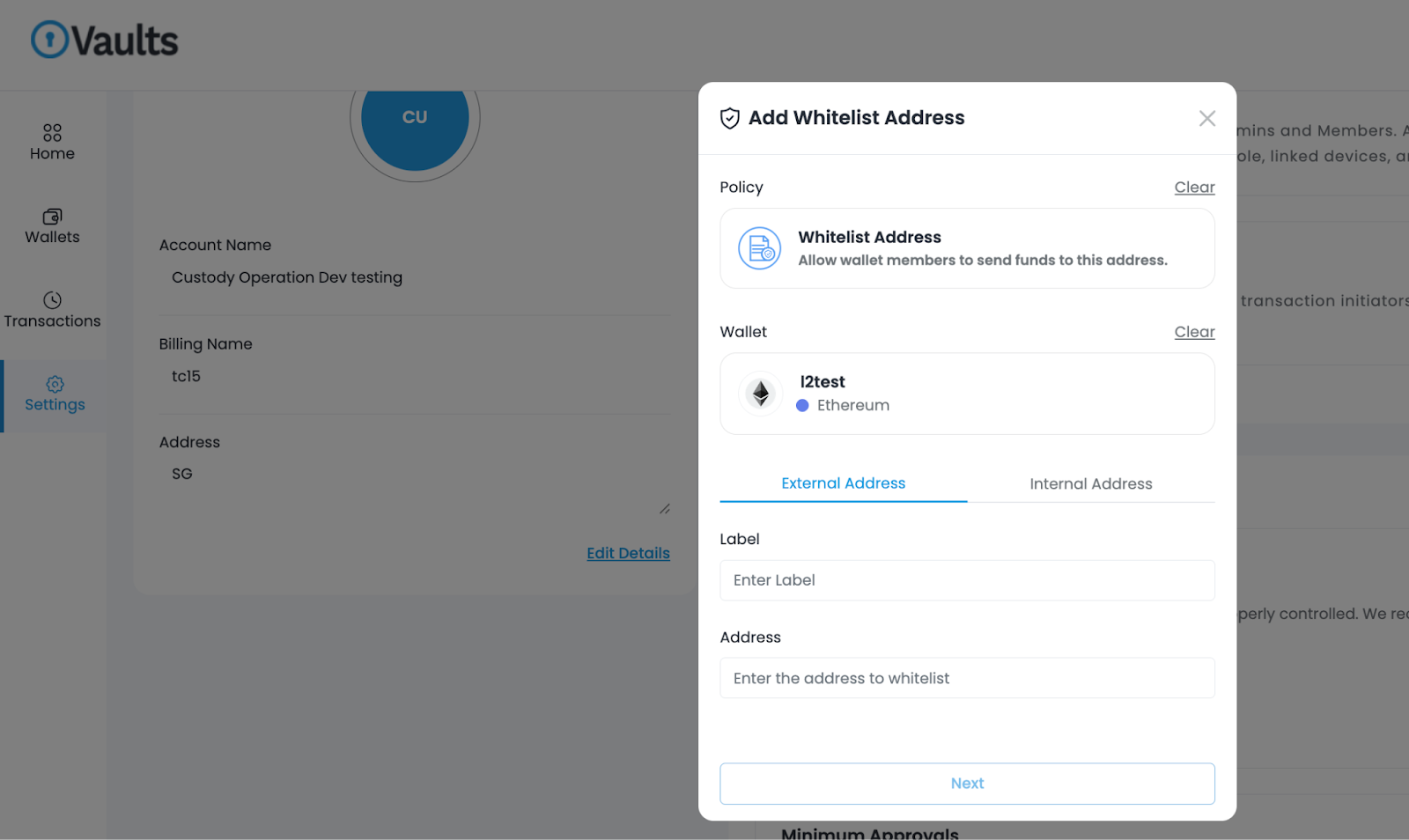
- Choose "Whitelist Address" as the policy type and select the desired "Wallet" for the transaction.
Choose Address Type:
- Determine if the address is "External" or "Internal." Then, add the address with a suitable label.
View Whitelisted Addresses:
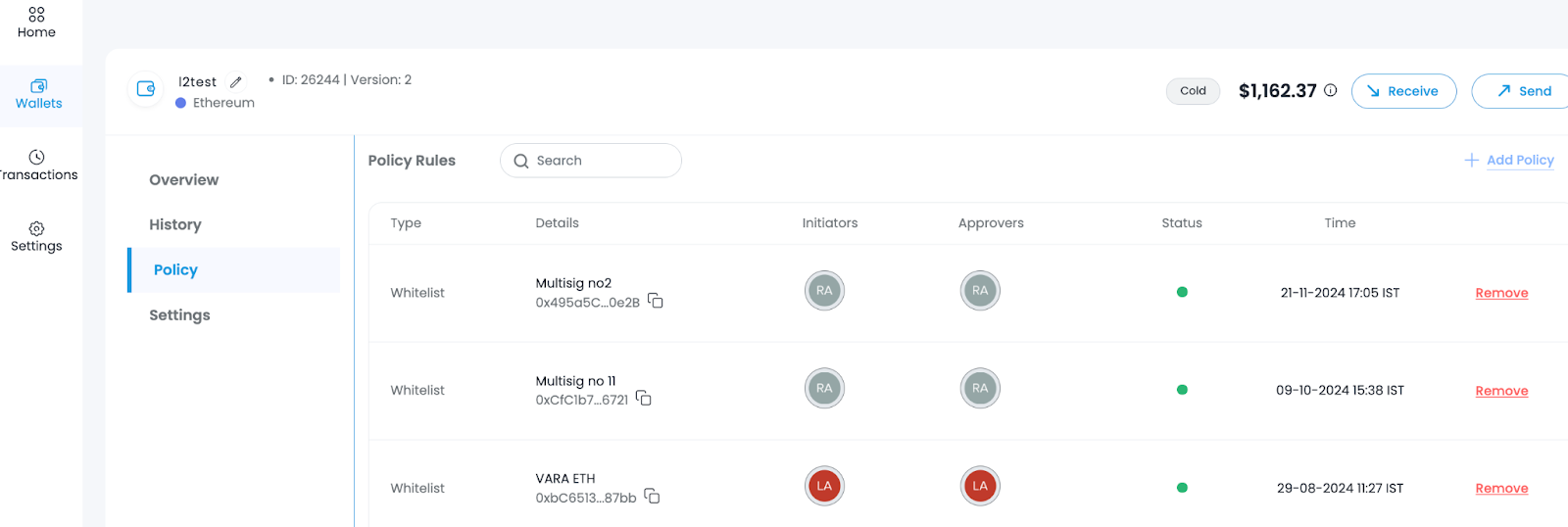
- After setting up the policy, you can view all whitelisted addresses by clicking on "View" under the Policy Rules section.
- After approval, customers will receive the email confirmation.
Was this article helpful?
That’s Great!
Thank you for your feedback
Sorry! We couldn't be helpful
Thank you for your feedback
Feedback sent
We appreciate your effort and will try to fix the article