Invite the Owner to the Organization
Customer Onboarding Process
The onboarding journey begins once the customer's KYB (Know Your Business) process is successfully completed. Based on the information provided in the Business Resolution (BR) during KYB, a new organization is created. Subsequently, the custody team proceeds to send user invitations to initiate their platform access.
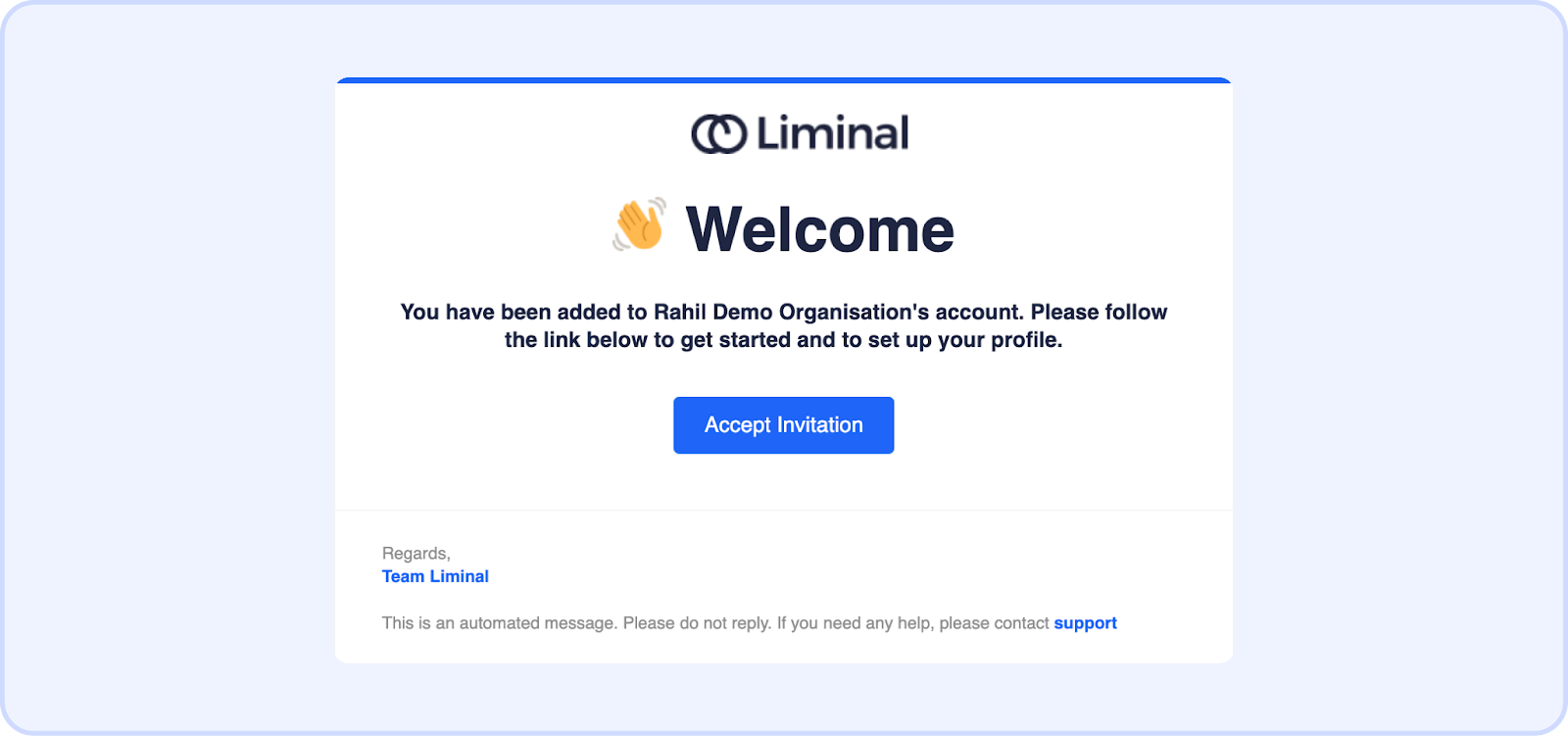
Account Setup and Verification
The organization's owner is guided to initiate their account creation process within the received email.
This entails setting up a strong and confidential account password. Furthermore, an essential security layer, two-factor authentication (2FA), is recommended to be enabled to fortify account access.
It is recommended to use sign-in with Google for a better sign-in experience.
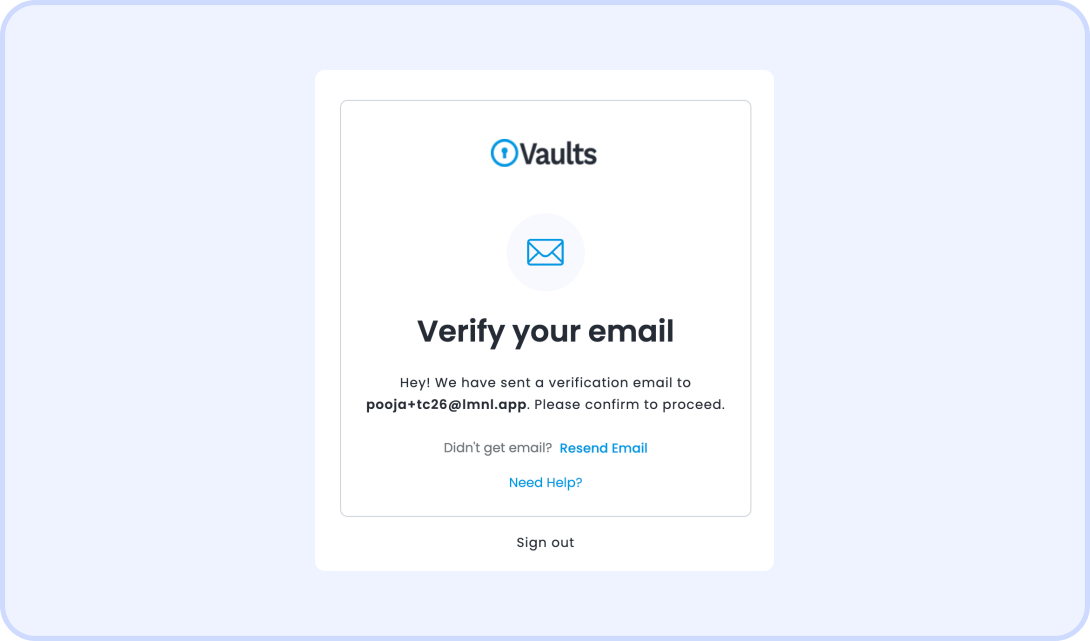
Email Verification
As an additional security measure, the organization's owner is directed to verify their email address. This verification process ensures the accuracy and legitimacy of the provided contact information, contributing to a more robust and reliable account setup.
D. Completing Owner Account Setup
With the account creation, 2FA activation, and email verification completed, the organization's owner is now equipped to navigate their Liminal account.
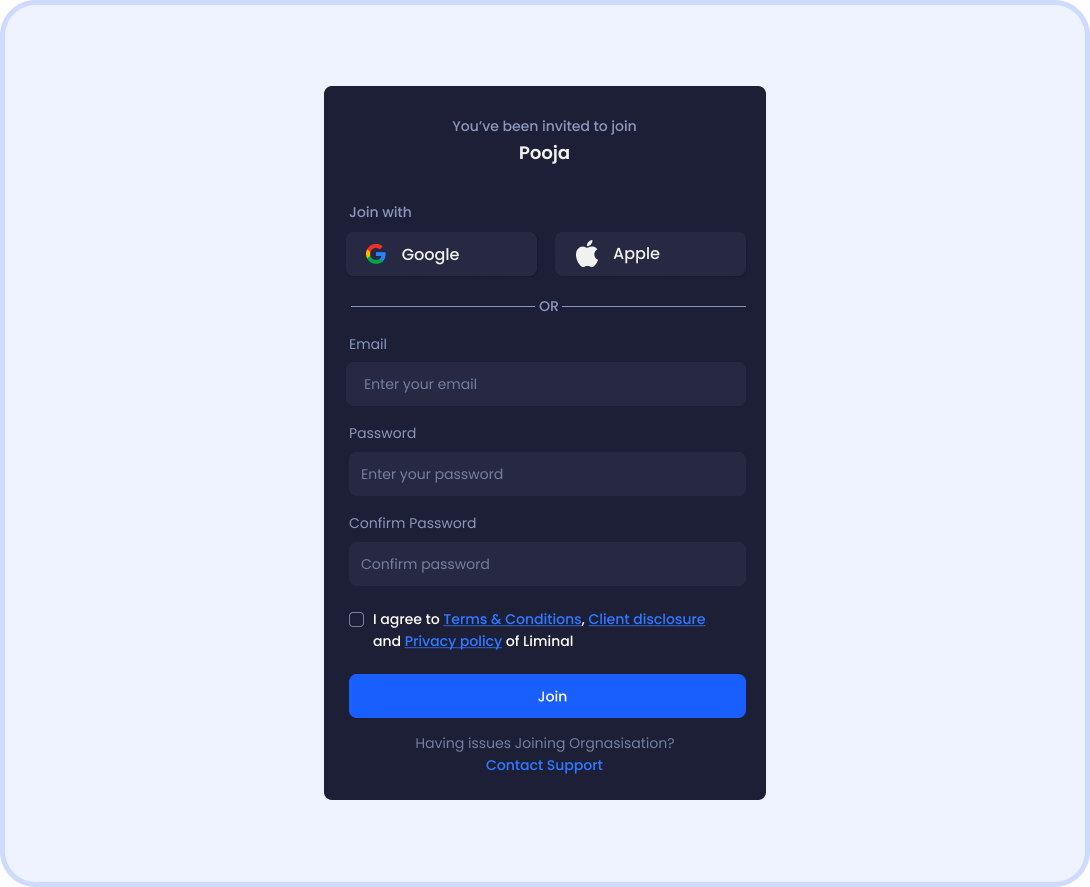
- Create Your Account:
- Enter your email address
- Create a strong password
- Accept the terms and conditions, client disclosures, and privacy policy.
- Enhance Security:
Set up Two-Factor Authentication (2FA) via Google Auth or Security Key.
Verify the email address by clicking the link sent to your inbox.
- To access the Customer Dashboard: Use your credentials to log in.
2. Invite other Users to Organization:
Liminal custody team members will invite users to join the customer organization based on the Board Resolution (BR) submitted by the customer during the KYB process.
Users to join the organization:
- Receive the Invitation: The customer checks the email for an invitation from Custody Owner/Admin.
- Accept the Invitation: Click on the “Accept Invitation” button within the email as shown above.
- Create Your Account:
- Enter the email address.
- Choose a strong password
- Accept the terms and conditions, client disclosures, and privacy policy.
- Enhance Security:
- Set up Two-Factor Authentication (2FA).
- Verify the email address by clicking the link sent to the registered email ID.
- Enter your credentials to log in and view/access the Customer Dashboard.
3. Enhance Future Withdrawals with a Default Originator Profile
For streamlined future withdrawals, we recommend utilizing the prefill default originator profile feature. You can set this up by navigating to Settings, then to the Compliance section, selecting Travel Rule information, and clicking View to update your Default Originator Profile.
(Update the Default Originator Profile as required)

Was this article helpful?
That’s Great!
Thank you for your feedback
Sorry! We couldn't be helpful
Thank you for your feedback
Feedback sent
We appreciate your effort and will try to fix the article